> For the complete documentation index, see [llms.txt](https://docs.siboor.com/llms.txt). Markdown versions of documentation pages are available by appending `.md` to page URLs; this page is available as [Markdown](https://docs.siboor.com/siboor-boom-january-2026/the-build/initial-startup.md).
# Initial Startup
### ※Check Wiring
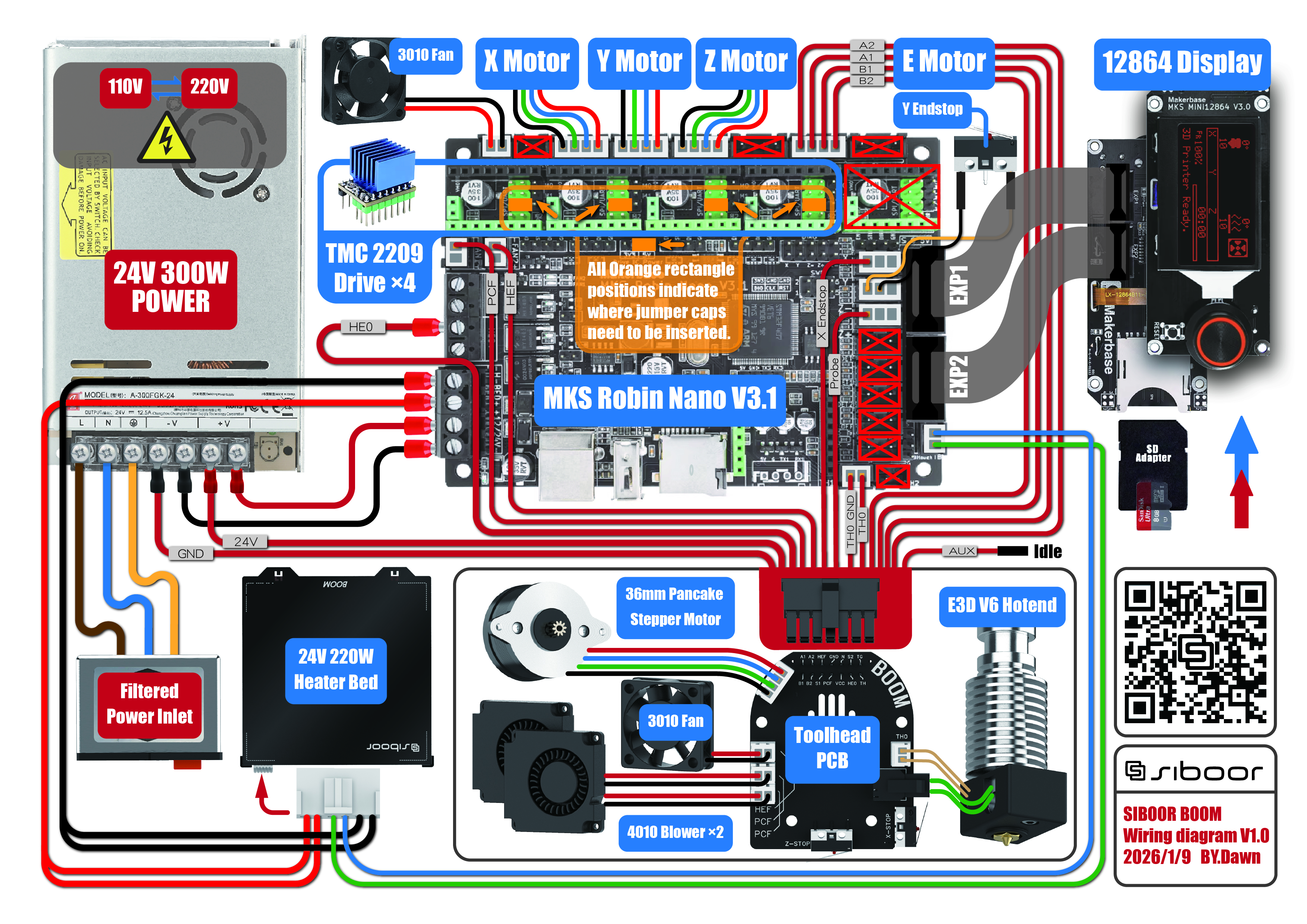
Before powering on, perform a final check of all connections:
* 110/220V wiring section
* 5V/24V wiring section
* Ensure all jumpers are inserted in the correct positions
* Verify all drivers are inserted into the appropriate driver slots and properly seated
With these instructions and icons, you can easily control the printer's menu and safety features.
### ※XYZ Homing Check
* Important: You need to be able to quickly stop the printer in case something goes wrong (e.g. the tool head goes the wrong direction). There are a few ways of doing this:
* There is a emergency reset icon underneath the encoder knob. Click on it to reboot marlin
* As a “nuclear” option, power off the printer with the power switch if something goes wrong. This is not ideal because it may corrupt the files on the SD card and to recover would require reinstalling everything from scratch.
* Once there is a tested process for stopping the printer in case of something going wrong, you can test X and Z movement. note: you will need to test X AND Y before you can correctly determine what adjustments are needed. First, Control -> Motion -> Homing ->Home X . This will only home X: The tool head should move up slightly and then move to the right until it hits the X endstop. If it moves any other direction, abort, take note, but still move on to testing Y. Next, test Y: Homing Y. The bed should move to the back of the printer until it hits the Y endstop.
\
Next,test Z:Homing Z.The X and Y should move to the center of Axis. Then the toolhead should move up slightly and then move to the bottom until it hits the bed.
### ※Setting Z Offset
Before modifying your Z Offset, make sure that you have set your Z position to 0, and the nozzle is cleaned ,to do this you can run the following operation.
* Control -> Motion -> Homing -> Auto Home -> Motion -> Move Axis -> Move Z -> Move 0.025mm -> 000.000
1. Place an A4 sheet on the platform.
2. Use the infoscreen to adjust the nozzle height relative to the bed.
* Move Z 0.025mm -> 000.025
* Move Z 0.025mm -> -000.025
* Once the offset has been perfectly calibrated apply , write down the Z Position. Then adjust Probe Z Offset.
\
The Default Z offset is 2.00mm ,because the Z probe need this distance to be triggered after the nozzle touched the bed.
* use the following formula to calculate the Actual Z offset:
* Actual Z offset=Default Z offset + Z Position
* For example:
* Default Z offset:2.00mm
* Z Position:-000.230
* Actual Z offset:1.77mm
3. Store Settings:
* Control-> Configuration -> Store Settings -> Load Settings.
4. Verify
* Retest:Perform the A4 sheet test when the Z Position is 0
* Adjust: Continue adjusting Probe Z Offset as needed until the first layer is accurate.
### ※Level bed
At this point everything is ready to Level bed.
* Control -> Motion -> Level Bed
* The toolhead will automatically move to multiple preset point with Z Probe.
\
The probe will contact the print bed at each point to take measurements.
\
Do not touch the printer: The process is automatic; avoid any interference.
* After probing is complete, the screen will display "Leveling Complete".
* Save the mesh.
* Control-> Configuration -> Save Settings -> Load Settings.
### ※Filament Tuning
Purpose Flow calibration ensures that your printer's extruder accurately dispenses material, improving print quality.
Prerequisites Marlin2.1.X firmware installed and configured. Printer connected and set up.
Basic printer calibration (such as axis calibration) completed.
Steps
1. Preparation
* Confirm Printer Temperature: Ensure the hotend is heated to the appropriate printing temperature for your material. For PLA, set the hotend to around 200°C.
* Heat the hot end to 200 degrees Celsius.
* Check Nozzle: Ensure the nozzle is clear and not clogged.
* Mark Material: Use a segment of material and make a mark at 100mm from the extruder gear.
2. Positioning and Extrusion
* Home the Printer: Home all axes to ensure the printer is in the correct starting position. This will move the print head to the center of the build plate, making it easier to observe.
* Extrude Material:
* First Extrusion: Do the following operation to extrude 50mm of material:
* Control -> Motion -> Move Axis -> Move Extruder -> 50.0mm
* Second Extrusion: Immediately follow with another command to extrude another 50mm:
* Move Extruder -> 100.0mm
* Measure: After the two extrusions (totaling 100mm), measure the total length of material extruded from the mark you made. The total length should ideally be around 100mm.
3. Adjust rotation\_distance
* Calculate New rotation\_distance:
* If the actual total extrusion length deviates from the expected 100mm, use the following formula to calculate the new rotation\_distance:
* New Axis steps = Old Axis steps × (Actual extruded length / Target length) For example:
* Old Axis steps: 691 steps/mm
* Target length: 100mm
* Actual extruded length: 98mm
* Using the formula:
* Copy New Axis steps = 691 × (98 / 100) ≈ 677.18
* Store Settings: Control -> Configuration ->Store settings -> Load settings
4. Verify
* Retest: Perform the extrusion steps again to ensure the actual extrusion length matches the expected 100mm.
* Adjust: Continue adjusting Axis steps as needed until the extrusion is accurate.
* Notes Perform flow calibration after the hotend temperature has stabilized.
* Ensure that the material used is consistent to avoid calibration errors due to material differences.
* Keep a record of each Axis steps adjustment for tracking and troubleshooting.
### ※Knob Usage Instructions
#### **Rotate the Knob:**
Clockwise Rotation 🔄
Counterclockwise Rotation🔄
Press the Knob 🖱️
Scroll down or increase the value.
Scroll up or decrease the value.
Select the highlighted menu option or confirm the action.
### Common Functions
* \
**Select Menu**:
* Rotate to select, then press the knob to enter a submenu or execute a command.
* **Adjust Value**:
* Rotate to increase or decrease parameters (like print temperature), and press to confirm.
* **Return to Upper Menu**:
* Select "Back," then press the knob to return.
### ※Emergency Stop Button Usage
* **Emergency Stop** (🚨):
* If an emergency occurs during printing, press the button in the lower right corner to immediately stop all movements.
* **Confirm Stop**:
* After stopping, The machine will restart.
Notes
* **Use Button with Caution** :
* Only use when necessary to avoid unintended interruptions in printing.
* **Check Status** :
* After pressing the button, ensure the printer status is normal.
***
With these instructions and icons, you can easily control the printer's menu and safety features.